Posts

Showing posts with the label Material Design

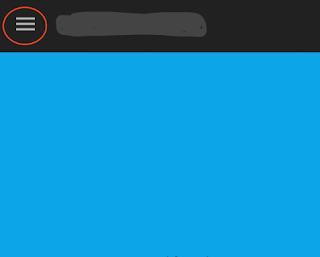
How to change the color of Hamburger icon in Toolbar Android
Image
Hello friends,  This tutorial is for changing Hamburger color on toolbar.  The default colors of Hamburger Navigation icon is white and black but we can change the color of hamburger icon.  Create a new style in style.xml. I created with name of drawerIcon. extends style by “Widget.AppCompat.DrawerArrowToggle”. <style name= "DrawerIcon" parent= "Widget.AppCompat.DrawerArrowToggle" > </style>          3. Add item color with given color code which color you want for hamburger. <style name= "DrawerIcon" parent= "Widget.AppCompat.DrawerArrowToggle" > <item name= "color" > @color/color_icon </item> </style>     4. Go to your main theme class. I have “AppTheme”.     5. Add your drawer theme to main theme with name of “drawerArrowStyle”. <style name= "AppTheme" parent= "Theme.AppCompat.Light.DarkActionBar" > ...

Floating Label in EditText Material Design Android

Image
Hello Friends, This tutorial is about Floating Label (Like OLX android App) in Material design. Before Material design When user Tap on EditText then hint of editText was gone. But with the help of TextInputLayout   hint text will move to top of EditText . First of all create new project in Android Studio. 1. After creating project open build.gradle(Module:app). 2. Add appCompact-v7 and design dependencies in build.gradle. dependencies { compile fileTree ( dir: ' libs ' , include: [ ' *. jar ' ]) compile ' com . android . support : appcompat - v7: 22.2 . 0 ' compile ' com . android . support : design: 22.2 . 0 ' } 3. Add EditText within TextInputLayout . < android . support . design . widget . TextInputLayout android: layout_width = "match_parent" android: layout_height = "wrap_content" > < EditText android: layout_width = "match_parent...